Showing posts with label review. Show all posts

Friday, March 26, 2010

djay


djay is a very cool little application for Mac. It lets you do lots with your music from scrating, mixing, speeding, slowing, and tons of other things that will make you feel like a real DJ. djay is great for parties, hanging out with friends, or just plain having fun. djay integrates with iTunes so you have all you iTunes music right at your fingertips. Just drag the song from the sidebar onto the turntable and it will start spinning. djay lets you scratch and mix your music many different ways.


You can use a mouse, keyboard, the MacBook's touchpad, a MIDI device, or the controller made especially for djay called Spin. The Spin accessory makes it even easier to use djay.


With djay, you drag the song you want to play from the sidebar and it will start playing ready for you to mix up. You can move the needle, scratch the record, and a bunch of other features like looping, cue-points, transitions, and skipping. You can even record your masterpiece to share with others. djay is the best way to mix and mash your music. There are tons of possibilities of what you can do with djay. djay has tons of features just waiting to be discovered. I highly recommend djay to anyone with tons, or even just a little, music. Try it out. You will not be disappointed!

Monday, March 22, 2010

Rocket Golf


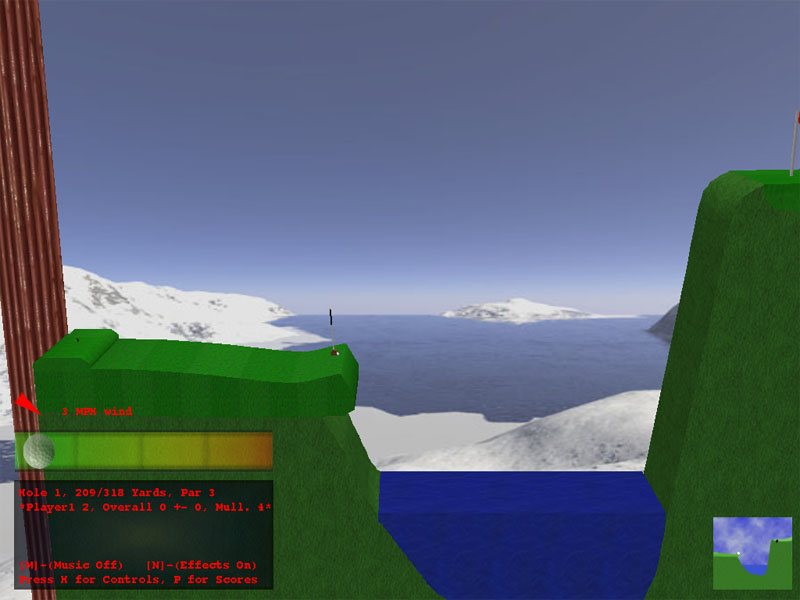
Rocket Golf is a fun golf game for Mac, but with a twist. Unlike traditional 3D golf games Rocket Golf is 2.5D. The graphics are 3D but the gameplay is 2D. To hit the ball, you press and hold the mouse button and aim. An arrow shows the power and direction of the hit. When you release the button, the ball is hit. You have to make it to the hole while avoiding obstacles such as water. Don't forget to take wind into account when you hit! The $15 game comes with 2 courses consisting of 18 holes each. You then can purchase the other 2 courses for $5 each. You also can save money by purchasing the full game with all the courses for only $20. When playing you can play with 1 to 4 players. Rocket Golf is a fun game to play to waste time.

Friday, March 19, 2010

Bridge Construction Set


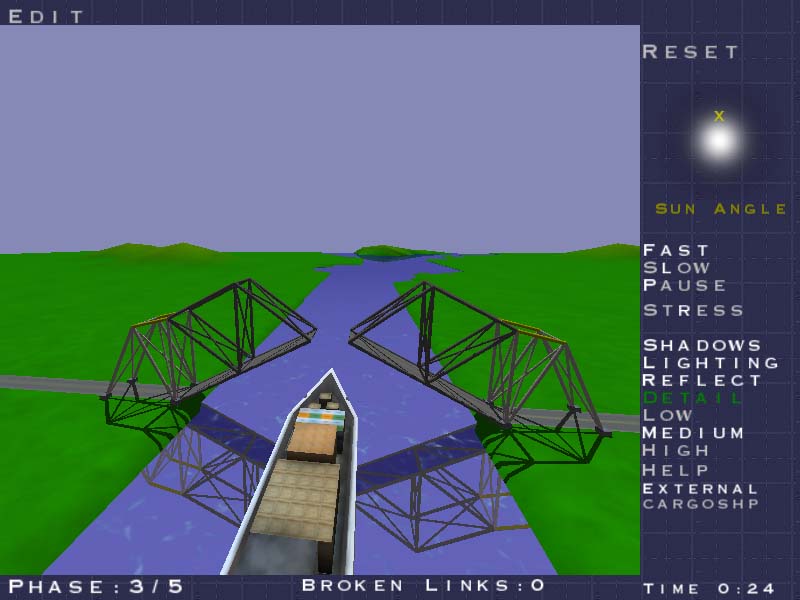
Bridge Construction Set is a very fun, addictive game. It starts easy but gets much, much harder as you go on. The point of the game is to build a bridge across a gap. You are given different materials on different levels. You also have to build bridges that open so boats can travel under on some levels. The games has good physics and is very fun to play. The game comes with lots and lots of levels to play and also lets you create your own. This is a very fun and educational game that I highly recommend.

Monday, February 22, 2010

Bumptop


Bumptop is a desktop replacement for Mac or PC. It gives you a 3D workspace. You can pile files, change their size, post them on the wall and more. You can put sticky notes on Bumptop or you can even put a photo on the wall. Bumptop is a very interesting software to use. It is fun to play around with, but if you don't have lots of files on your desktop it might not be as useful. If you have a touchscreen computer, Bumptop would be great for you though. I recommend you try out Bumptop to see how it works for you.

Saturday, February 20, 2010

Pixelmator


Pixelmator is a very good Photoshop alternative for Mac. It doesn't contain all the features of Photoshop, but for the price it does a lot and does it well. Pixelmator is very easy to learn, especially for anyone who has used Photoshop before. It contains many of the tools from Photoshop. One of Photoshops very useful tools, the magnetic lasso, is missing from Pixelmator. Pixelmator opens and saves as Photoshop documents so it is compatible with Photoshop. Pixelmator has a very nice interface and works well, but also has a few bugs. Another thing I would like to see in Pixelmator that Photoshop has is the history palette. Overall, Pixelmator is a very great piece of software at a very great price!

Thursday, October 8, 2009

And Yet It Moves


And Yet It Moves ($9.99) is a platformer game with a twist, literally! On And Yet It Moves, besides being able to control the character, you can twist the background every which way. The game has very good, layered graphics and runs very smooth. You can customize all the settings, including the controls. Also, you can have multiple users. And Yet It Moves has 17 levels and your can replay them to race your ghost. There are also online high scores.


The best way to get a feel for the game is to watch the video. It is a very fun game to play. It is half puzzler and half platformer. And Yet It Moves is a very polished game. You can even try out the demo. And Yet It Moves is a very cool game. I can't even find anything negative about this game, which is very rare. I would suggest And Yet It Moves to anyone.

Wednesday, October 7, 2009

Cram


Cram ($29.99) is a flash card application for the Mac. Cram lets you create multiple-choice quizzes, track your progress, and even make flash cards. Cram also has a Test Portal, where you can find and download other users tests, either from Cram's own test service or Quizlet. Cram is a very neat app, but it does come with some weak points. It has some unique features, but also has many flaws to go with them.


Cram allows you to sort your quizzes into categories or the application's sidebar. The main section of the window has a list of all your quizzes that are in the selected category. You can select a test and then click  details to edit the test questions, study to view the test as flash cards, start test to take the quiz, or history to view past scores. Also, the share test button allows other Cram users to view your test and also allows you to put the test on your iPhone if you have Cram for iPhone ($6.99). I will go into more detail of the iPhone app later in the review. Obviously, the edit button allows you to edit the test's title and the delete button allows you to delete the test.


When making a new quiz you have many options. You have a text box for a question and five more for possible answers. Cram doesn't allow you to customize the amount of questions. You can also use the answer bank to generate answers. the answer bank allows you to type in possible choices for answers before you start making the question. Then, when you are making the question, you can choose and answer from the answer bank and have it fill in the rest of the possible answers with items from the answer bank. The answer bank bug me a little in a few ways. First of all, you can not add to the answer bank without canceling the question you are editing. Secondly, the answer bank does not give you different answer choices each time you take the quiz. It only fill the question in while you are creating it and is doesn't change after that.

Another feature of Cram is adding picture and audio to the questions. I think Cram should allow you to record audio right from the question creation window. Also, it would be nice to use the iSight for taking photos right from there too.

One last thing that bugs me when creating questions within Cram is that you have to click new every time you would like to make a new question. There is no way to automatically make a new question after you finish the last one.


Also, another thing to note, when viewing your questions, it does not show the answer in a column next to them like you would expect.


When taking the test, you have the question on the top and the four choices on the bottom. You can use your mouse to select a choice and the green arrow to move on to the next question. You can also use the "A", "B", "C", "D", and "E" buttons on your keyboard to select and the arrow keys to move between questions. It would be nice if the application let you use the number keys 1-5 to choose A-E. It would be much easier because they are next to each other on the keyboard in stead of being spread apart.

I would like to see Cram include different types of quizzes along with multiple choice, for example, one where you actually type in the answer. This would add variety to it, plus, it is hard to study with multiple choice if you need to learn how to spell something.


When you finish the test, it is graded for you. Cram saves your scores so you can compare them to past scores. You also have an option to share your scores over Twitter.


Cram's study mode is my favorite part of Cram. It allows you to view the quiz as flashcards and quickly go through them with the arrow keys. You can also reverse the cards so you see the answer first and then the question. The study mode doesn't keep track of how many questions you correctly answered. I think Cram should allow you to mark the flashcard to indicate whether you answered it correctly, and then, next time you study, it should play the cards you missed more frequently. Besides this, the study mode is nearly perfect.

Cram is a very nice study took and is very polished, but it is missing out on some things that would make it even better. It would be nice if Cram could automatically mix in answers from other questions into a question instead of using the answer bank. This way, it would have a different answer every time. In addition to that, you would be able to reverse the test in the same way you reverse the flash cards.

Overall, Cram for Mac is a very neat way to study. You can find many flashcards already made on the test portal. Cram can really help you ace your next test.


Cram for iPhone ($6.99) lets you take your tests you make in Cram on your iPhone. You can also create test on the iPhone or make them on a text editor and upload them to your account on Cram's website. Cram for iPhone is very limited. It doesn't have any way to synchronize the quizzes automatically or even move a quiz for your iPhone to Cram for Mac. Cram for iPhone needs a lot of work, but if you really would like to study on the go, Cram for iPhone is the way to go!

Saturday, October 3, 2009

ControllerMate


ControllerMate ($15) is an application for Mac OS X that allows you to easily customize the behavior of controllers with drag-and-drop blocks. You can easily customize the controls for your favorite game, make your controller work in applications that don't support it, or even make your controller act like a mouse. ControllerMate is a must have for any Mac gamer.


ControllerMate has so many features that it would take forever to name them all. Controller mate include over 50 types of building blocks and 3 types of virtual devices. It supports multiple controllers of the same type. I even was able to use the PS3 controller with it over bluetooth. (It didn't support motion sensing, trigger pressure, and the 4 led lights kept didn't stop blinking.) ControllerMate also has a helper application (that can be disabled) that allows you to use your controllers without the application running.


ControllerMate has a simple, but intuitive interface. The left sidebar has 3 different categories, "Programming," "Controller Types," and "Virtual Controllers." The selected category changes what is shown in the main view. When "Programming" is selected, sidebar shows your pages and groups and the main area shows the building blocks on the current page. You can sort your pages into groups. Also, you can have many pages active at the same time. Near the top of the sidebar, there is a master enable checkbox. When the "Controller Types" tab is selected, you are presented in a list of all the devices connected to your computer from mice to joysticks to keyboards. You can then customize their name, their controls names, and many other settings relating to the devices. The final tab, "Virtual Controllers," allows you to create your own virtual mice, virtual tablet, or virtual joystick. These allow you to control a virtual mouse, the cursor location, and a virtual joystick.

On the right side of the screen, there is a palette window, an inspector window, and an output window. The palette allows you to browse through the building blocks and drag them into the main windows. The categories (of blocks) in the palette are "Controllers," "Outputs," "AppleScript," "Logic," "Basic Math," "Calculations," "Timers," and "Extras." When in the controller view of the palette, controllers glow when they receive input (from button presses, joysticks, etc.) so it is easy to find the correct controller. When you double-click the controller, you are presented with a list of buttons (joysticks, etc.) on the controller. The buttons being pressed glow her too. You can read about the different types of blocks here. The inspector windows allows you to edit the different attributes of the currently selected block. The output window behaves like a basic text box. It is used for testing your page.


In the main windows, you arrange your blocks in a similar way as a flowchart. The beginning of an action starts with an input, such as a button on a controller. When pressed, the input passes a yes onto the next item. When and item receives a yes, it preforms its action; be it math, logic, an output, or anything else. The above example would make a Playstation 3 controller act as a mouse with the left joystick, scroll with the right joystick, left click with "X," right click with "O," initiate exposé with with the "L2" and "R2" triggers, and move the mouse slowly with the arrows.

ControllerMate's website contains many tutorials and info on the application. ControllerMate is a great application that is very user friendly. ControllerMate can also be downloaded and used for free as a trial. The trial is limited to only 10 output, timing, math, or logic building blocks and controller configurations only last 20 minutes when controller mate is not in the foreground.

If you are you using Windows, GlovePIE is a great free alternative. It does not contain a drag-and-drop user interface, but it has a very easy to learn programming language and can also automatically create scripts for you.

Tuesday, September 29, 2009

Scribbles


Scribbles ($20) is a very polished drawing application for Mac OS X. Scribbles contains many useful brushes, support for layers, and an amazing user interface. It has an unlimited drawing canvas, high resolution export, and it even supports drawing tablets. With Scribbles, you will never want to use another drawing application again!


First of all, let me talk about the user interface. The interface very smooth and polished from the animation to the way everything is laid out. The bottom left has the brush and color options and the bottom right has the layers button. The top right has the control for switching between painting, moving (and resizing and rotating) the layer, panning, and zooming. Through the menubar, you can turn on fullscreen mode and tracing paper mode, which makes the application window transparent.

Scribbles uses a infinite canvas, which allows you zoom in, out, and move around your canvas. There is no preset canvas size. Also, Scribbles re-renders the drawing so there won't be a jaggy edge when you zoom in. In addition, Scribbles has layers so you can draw different parts of the drawing in different layers so when you erase, you don't erase the other layers. You can also set the transparency of the different layers with the slider on the top right. With the combination of the infinite canvas, layers, and undo; you draw without worrying about messing up and making a mistake.
Scribbles includes many different brushes for you to choose from. They include:
Flat (Soft, Medium, and Hard)
Eraser (Soft, Medium, and Hard)
Bristles
Charcoal
Calligraphy
Goo
Rainbow
Shade

The flat brushes are just basic brushes. The soft brush has a soft edge. Bristles, my favorite brush, is like a paint brush. Charcoal has a cool texture. Goo is 3D. Shade lets you shade stuff in your paintings. Calligraphy is cool for signing your name.
When painting, you can use the color wheel or the eyedropper tool to choose color.

Scribbles has many different export features. You can send the picture in an email directly from the app. You can also publish it to the scribbles gallery to share your work with others. Lastly, you can export as a BMP, GIF, JPG, PDF, PICT, PNG, or TIFF. Scribbles can export at a high resolution. Oh, and of course you can save as Scribbles file format, PTN, to work on again later.

Last but not least, Scribbles supports drawing tablets. If fact, this is my favorite feature of Scribbles. When you draw with the pen, your pressure changes the thickness and opacity of the brush to produce a realistic drawing. You can of course turn either one or both of these off. Also, Scribbles supports the eraser on the back of the pen. Sadly though, it only does hard erase. You can't customize it to do a soft erase.

The developer has a trial version of Scribbles on their site. It has no time limit and lasts forever. The trial version has limited export capabilities.

Check out the user manual for more info about Scribbles.